
PRODUCT SPECIFICATIONS
How to show specifications that change with the selected variant
By umisdev · Updated
Keep information shared by every variant on the product, and store changing details on the variant. SpecPebble can render those variant fields in a specification table that follows the shopper’s selection, with the product value as a fallback when a variant field is missing.
Decide what belongs to the product and what belongs to a variant
A hat’s collection can stay on the product, while circumference changes with the fitted size. A television’s series can stay shared while screen size changes. Use verified measurements and product facts; a starter structure supplies labels and field types, not the facts themselves.
Do not duplicate every shared detail on every variant. A product-level value gives you one place to maintain information that genuinely applies to all choices.
Map the fields, then review the values
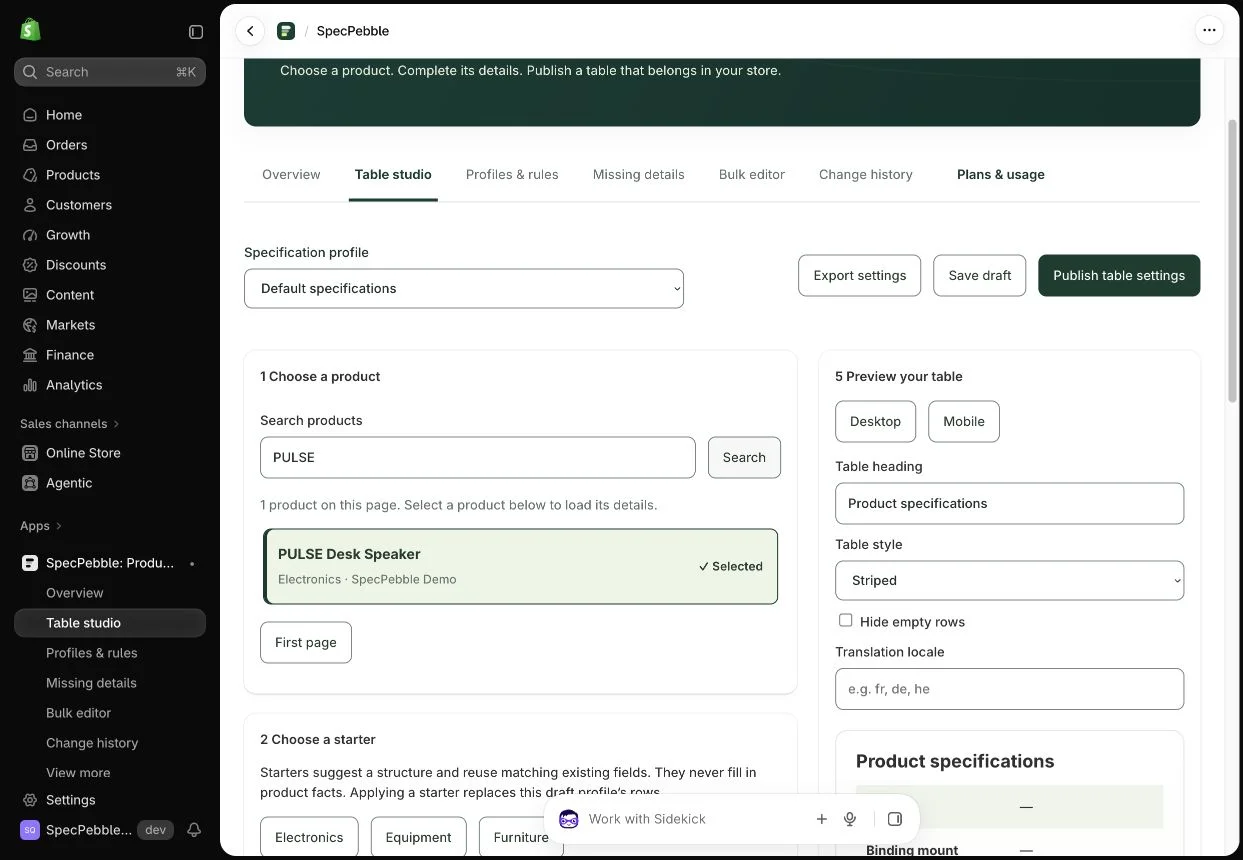
- Select the product in Product studio and choose the specification profile you want to configure.
- Map shared rows to product fields. For a detail that changes with the selection, choose a variant source for that row.
- In Details that change with the variant, choose a saved variant and enter its verified values. Use Review variant specifications before saving.
- Repeat for the variants that need an override, preview different selections, and publish the specification settings.
Understand the fallback before you publish
When a mapped variant field is missing, the storefront can use the corresponding product value. This is useful only when that shared value is valid for the variant. For example, do not use a generic circumference as a fallback for sizes with different measurements.
In the variant editor, leaving an input empty keeps the current saved details; it is not a delete command. Check the current value shown in the editor before reviewing a change.
Verify the table with real selections
Add the specification block to your product template. If you use SpecPebble’s purchase block, select several variants on the storefront and verify that the displayed details follow the choice. Check an example with a variant override and an example that uses the product fallback.
Publish settings and confirm the storefront as separate steps. A saved profile alone does not show that a customer can see the table.
A few useful answers
Does SpecPebble generate product measurements?
No. Enter verified product data or map existing fields. The app organizes and displays the information you provide.
Do I need a different profile for every size?
No. Use the same profile with variant-sourced rows. Profiles define the table structure; variant fields supply the values that change.